
How to use OmniDM
Pick what you want to grab and follow along with real screenshots.
Download a file
Grab any file straight from the page you’re browsing — here’s the full flow, using blender.org as an example.
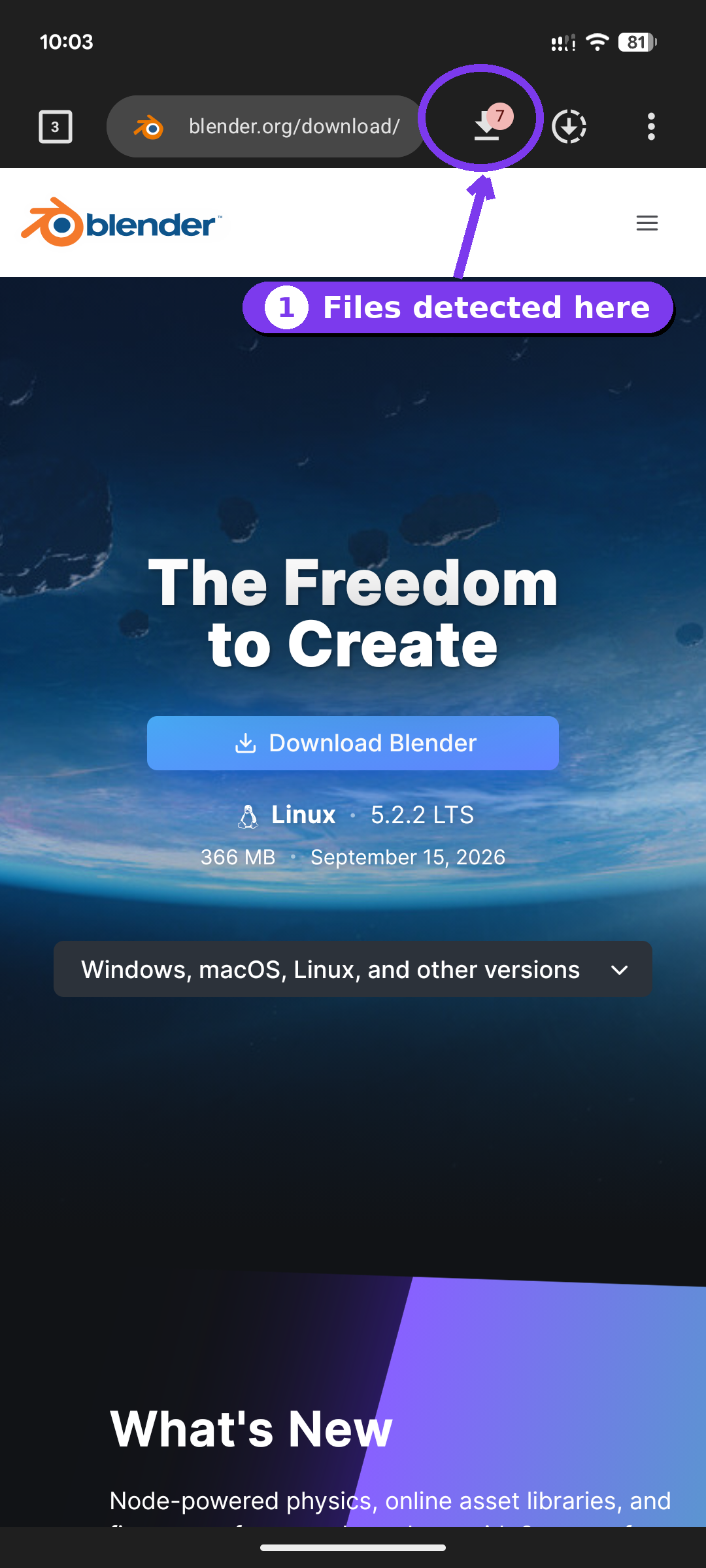
Open the download panel
On any page, OmniDM quietly scans for downloadable content. Tap the download icon in the toolbar — the badge shows how many files it found.
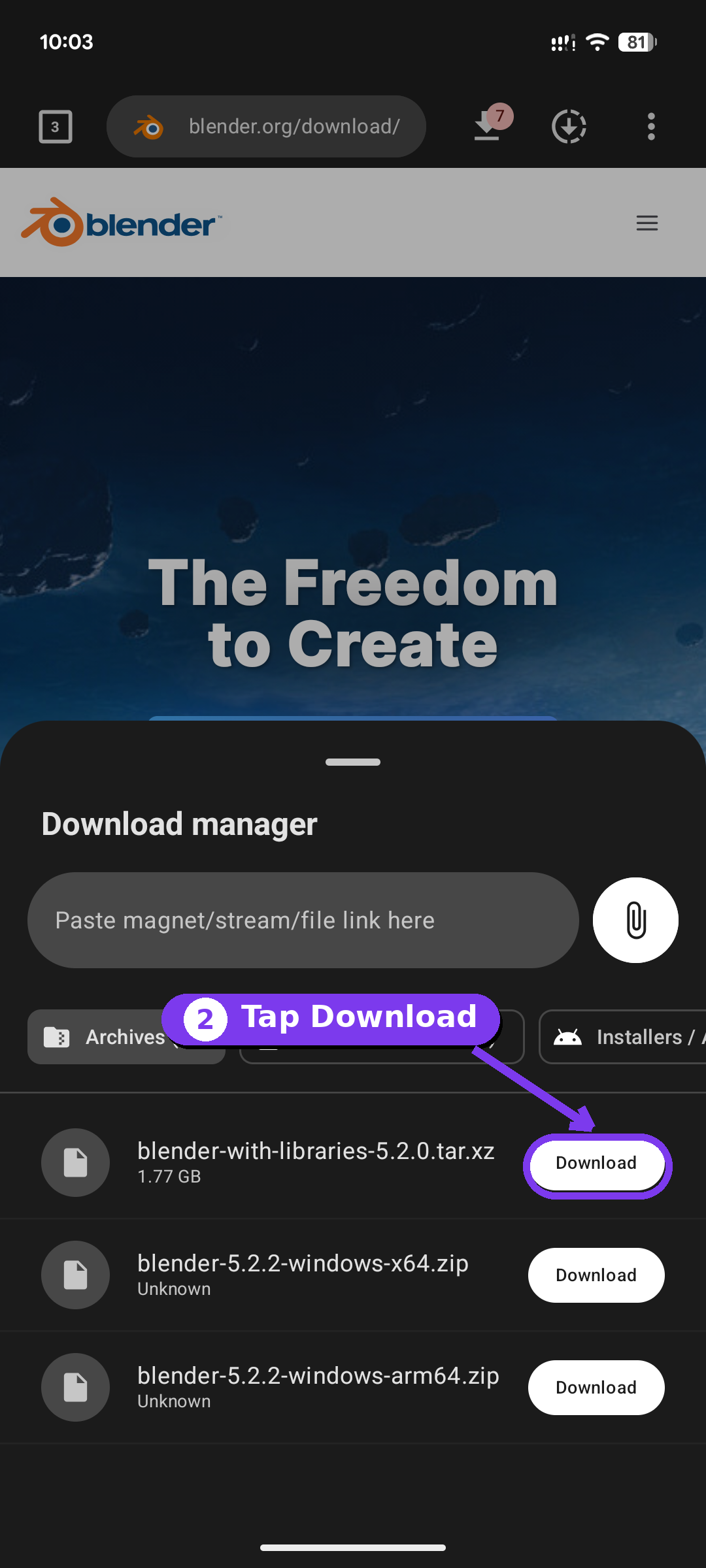
Pick a file and download
The panel groups results into Archives, Files / Documents, Installers and more. Choose the file you want and tap Download. You can also paste a direct link at the top, or just use the site’s own download button — OmniDM catches it either way.
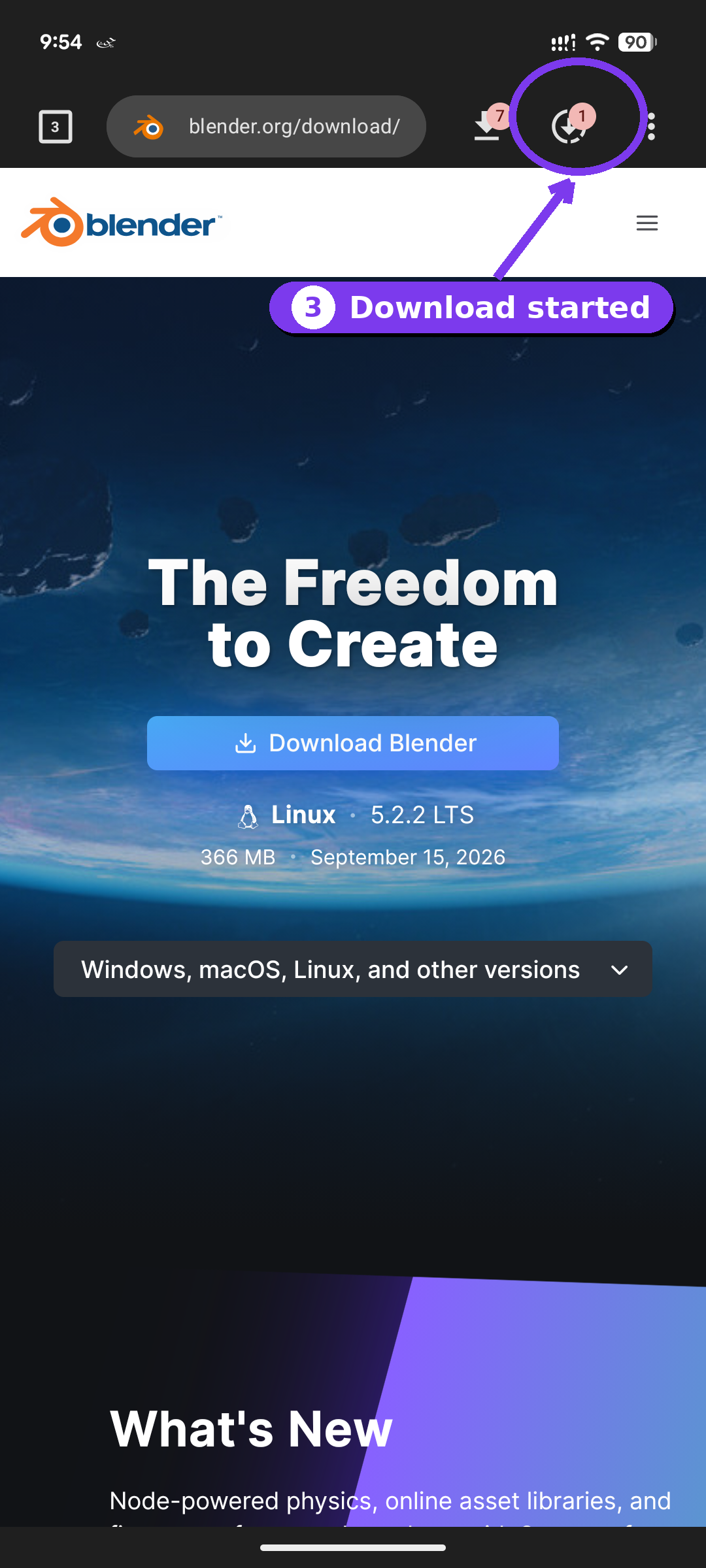
Your download starts
As soon as the download begins, the downloads button in the toolbar lights up. Tap it to jump straight to your downloads.
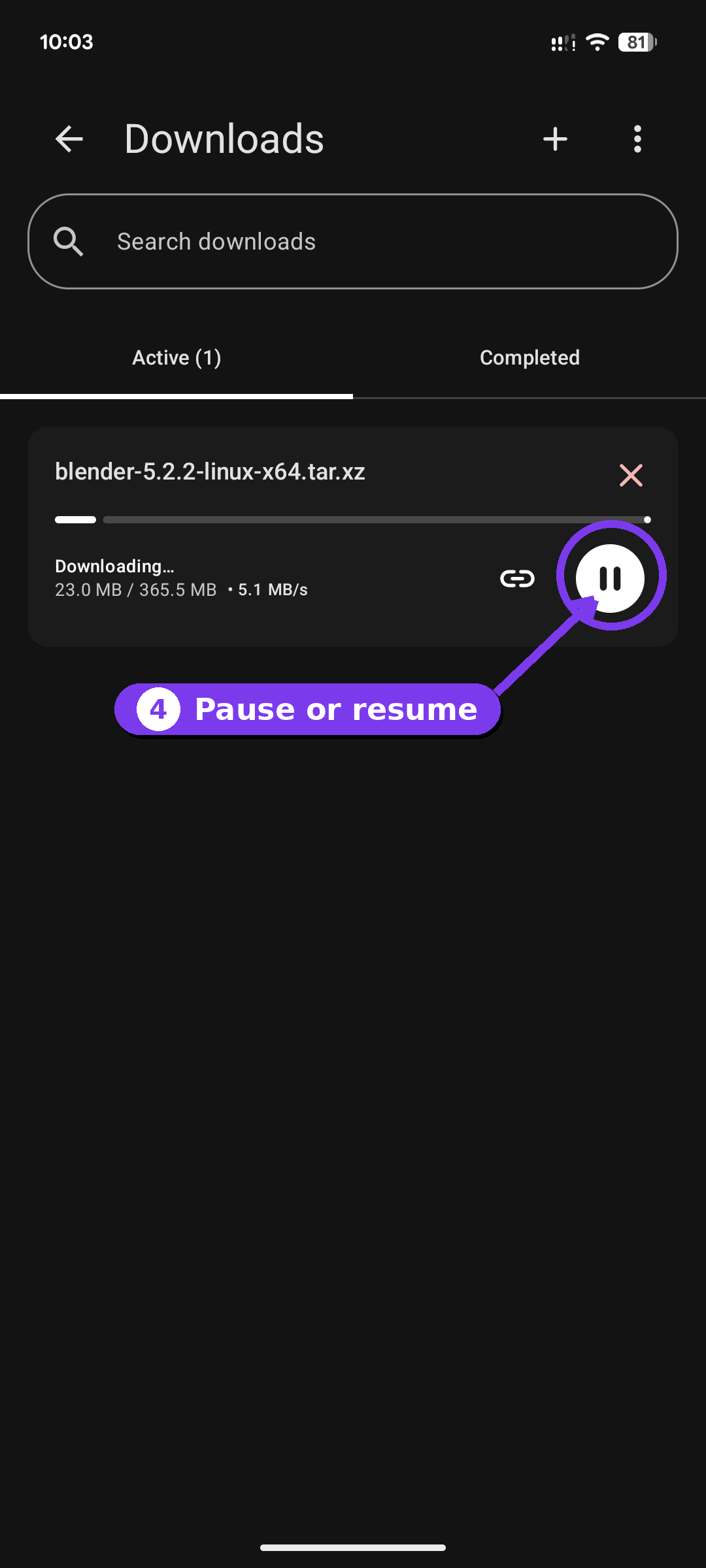
Track the progress
The Downloads screen shows live speed and progress. Pause, resume or cancel any file with a tap — transfers keep running in the background, even with the app closed.
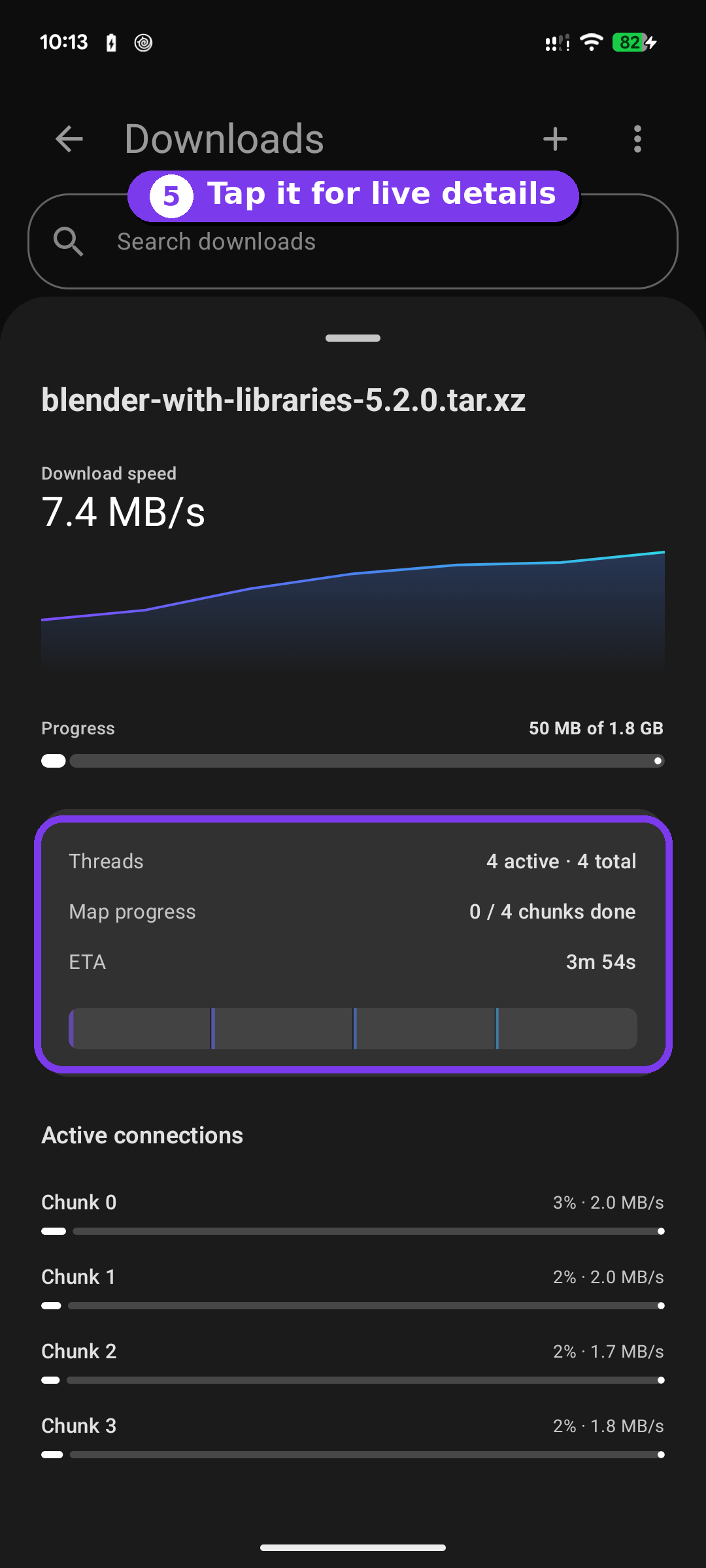
See live details
Tap a download to open its detailed view: a real-time speed graph, total progress, active threads, per-chunk connections and an ETA.